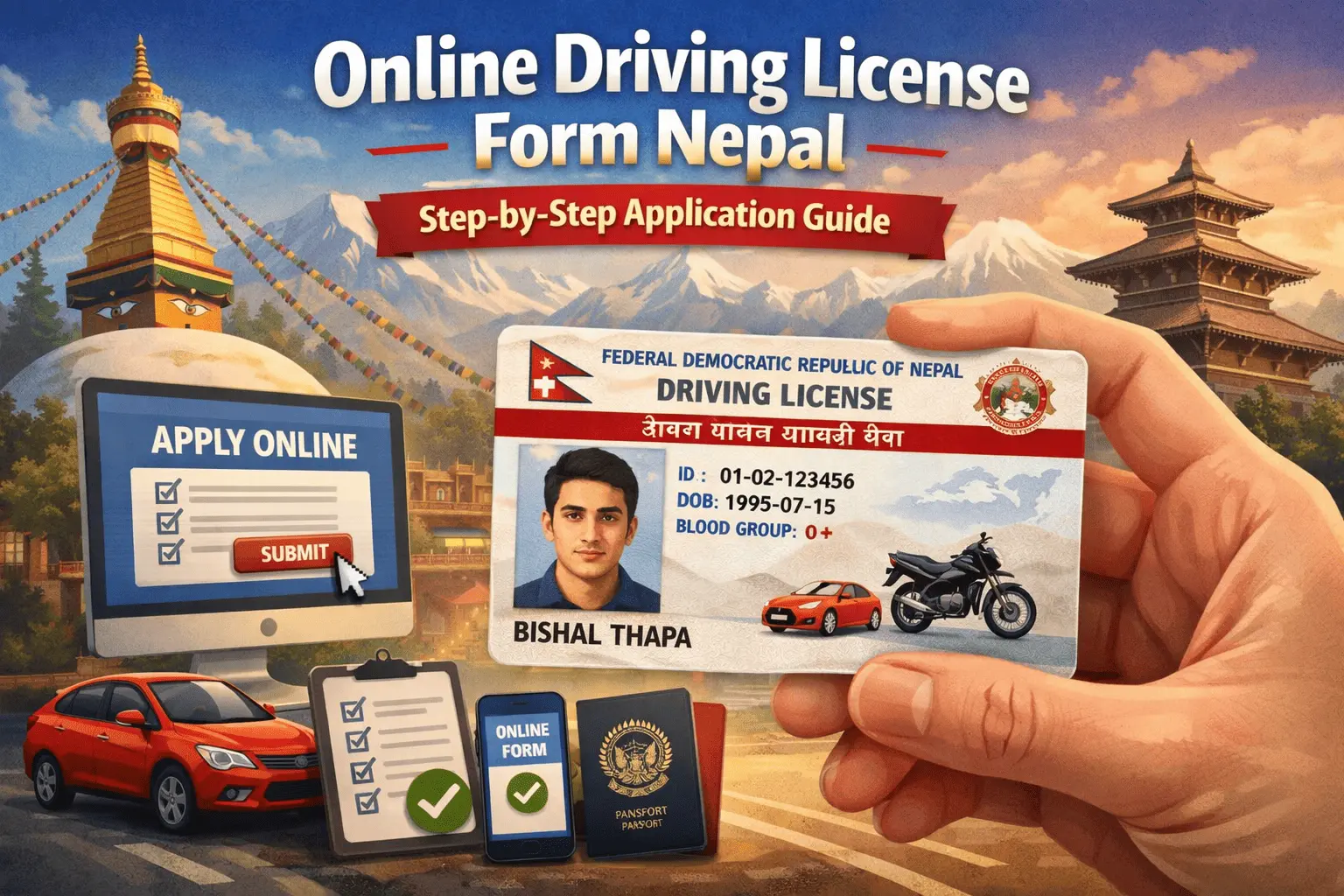
If you are looking to apply for a driving license in Nepal, the process has become much easier thanks to the Department of Transport Management’s (DOTM) online system. Whether you are applying for the first time or renewing your license, you can now fill out the Online Driving License Form Nepal from the comfort of your home. In this guide, we will walk you through every step of the process, from registration to document submission, and provide expert tips to ensure your application is approved quickly.
Why Use the Online Driving License Form Nepal?
The traditional method of applying for a driving license involved long queues, paperwork, and multiple visits to government offices. The online system has revolutionized this process by allowing applicants to:
- Fill out the driving license form from anywhere.
- Upload required documents digitally.
- Schedule appointments for biometrics and exams.
- Track the status of your application online.
This not only saves time but also reduces the risk of errors and delays.
Step-by-Step Guide: How to Fill the Online Driving License Form Nepal
Step 1: Registration and Account Creation
- Visit the Official Website
- Go to the DOTM’s online driving license portal:
https://applydlnew.dotm.gov.np.
- Go to the DOTM’s online driving license portal:
- Sign Up
- Click on the “Sign Up” button.
- Enter your full name, date of birth (as per citizenship), and mobile number.
- An OTP (One Time Password) will be sent to your mobile number. Enter this OTP to verify your account.
- Set a Password
- Create a strong password for your account. This will be used for future logins and updates.
Step 2: Fill in Personal Details
- Log In
- After registration, log in to your account.
- Fill Personal Information
- Enter your personal details such as name, date of birth, blood group, and guardian’s details (if applicable).
- All fields marked with an asterisk (*) are mandatory.
- Address Details
- Provide your permanent address (as per citizenship) and current address. It is recommended to use an address in the district or nearby area of the transport office where you plan to apply.
Step 3: Upload Required Documents
- Citizenship Certificate
- Upload a scanned copy of your citizenship certificate in PDF or JPG format.
- Upload a scanned copy of your citizenship certificate in PDF or JPG format.
- Passport Photos
- Upload recent 2×2 inch passport-sized photos in JPG format.
- Upload recent 2×2 inch passport-sized photos in JPG format.
- Medical Certificate
- If required, upload a medical certificate from an authorized clinic.
- If required, upload a medical certificate from an authorized clinic.
- Previous License (if renewing)
- For renewal cases, upload a scanned copy of your previous license.
- For renewal cases, upload a scanned copy of your previous license.
Step 4: Select License Category and Transport Office
- Choose License Category
- Select the category of vehicle you want to drive (e.g., two-wheeler, four-wheeler, etc.).
- Select the category of vehicle you want to drive (e.g., two-wheeler, four-wheeler, etc.).
- Select Province and Transport Office
- Choose your province and the nearest transport office. This will determine where you will go for biometrics and exams.
- Choose your province and the nearest transport office. This will determine where you will go for biometrics and exams.
Step 5: Book an Appointment and Pay Fees
- Schedule Appointment
- After submitting your form, you can book an appointment for biometrics and exams through the online system.
- After submitting your form, you can book an appointment for biometrics and exams through the online system.
- Payment
- Complete the payment process online using bank transfer, digital wallets, or credit/debit cards. Download the payment voucher and keep it for your records.
Step 6: Visit Transport Office
- Document Verification
- On your scheduled date, visit the transport office with your original documents for verification.
- Biometrics
- All 10 fingerprints will be taken, your digital signature will be recorded, and a photo will be taken with a webcam. Wear appropriate clothes, as this photo will appear on your license.
- Exams
- Take the written (Likhit) and practical (Trial) exams as required.
- Take the written (Likhit) and practical (Trial) exams as required.
Step 7: Track Application Status
- After completing all steps, you can track your application status online through the DOTM portal. You will receive updates via SMS and email.
Legal Requirements and Regulations
- Age Requirement: Applicants must be at least 16 years old for two-wheelers and 18 years old for four-wheelers.
- Motor Vehicle Act 2049: The online driving license form system operates under the Motor Vehicle and Transport Management Act 2049. All applications must comply with established legal frameworks.
- Document Validity: All uploaded documents must be valid and in the required format.
Tips for a Smooth Application Process
- Use a Valid Mobile Number: Ensure the mobile number used during registration is active, as OTPs and status updates will be sent here.
- Double-Check Details: Review all information before submitting to avoid errors and delays.
- Keep Documents Ready: Have all required documents scanned and ready for upload.
- Schedule Early: Book your appointment as early as possible to avoid last-minute hassles.
Frequently Asked Questions (FAQs)
Q: Can I apply for a driving license online if I am not a Nepali citizen?
A: No, the online system is only available for Nepali citizens.
Q: What should I do if I forget my password?
A: Use the “Forgot Password” option on the login page to reset your password.
Q: Can I change my transport office after submitting the form?
A: No, you cannot change your transport office after submission. Choose carefully during the form-filling process.
Q: How long does it take to get the license after applying online?
A: The processing time varies, but it typically takes 6 to 24 months, depending on the district and demand.
Conclusion
Filling out the Online Driving License Form Nepal is a straightforward process that can be completed from the comfort of your home. By following the steps outlined in this guide, you can ensure a smooth and error-free application process. Always refer to the official DOTM website for the most up-to-date information and requirements.